Replace a shared Excel file with a tool built with AI, no developer needed (2026)
A shared Excel file is often a small business’s first internal tool: the quote tracker, the schedule, the stock list. It works while the team is small, then overwritten rows and duplicate versions pile up. Here is when to replace it, and how to do it with your AI, without a developer.
By Aloïs Oddon, co-founder of Nextmap. Facts checked on November 18, 2026.
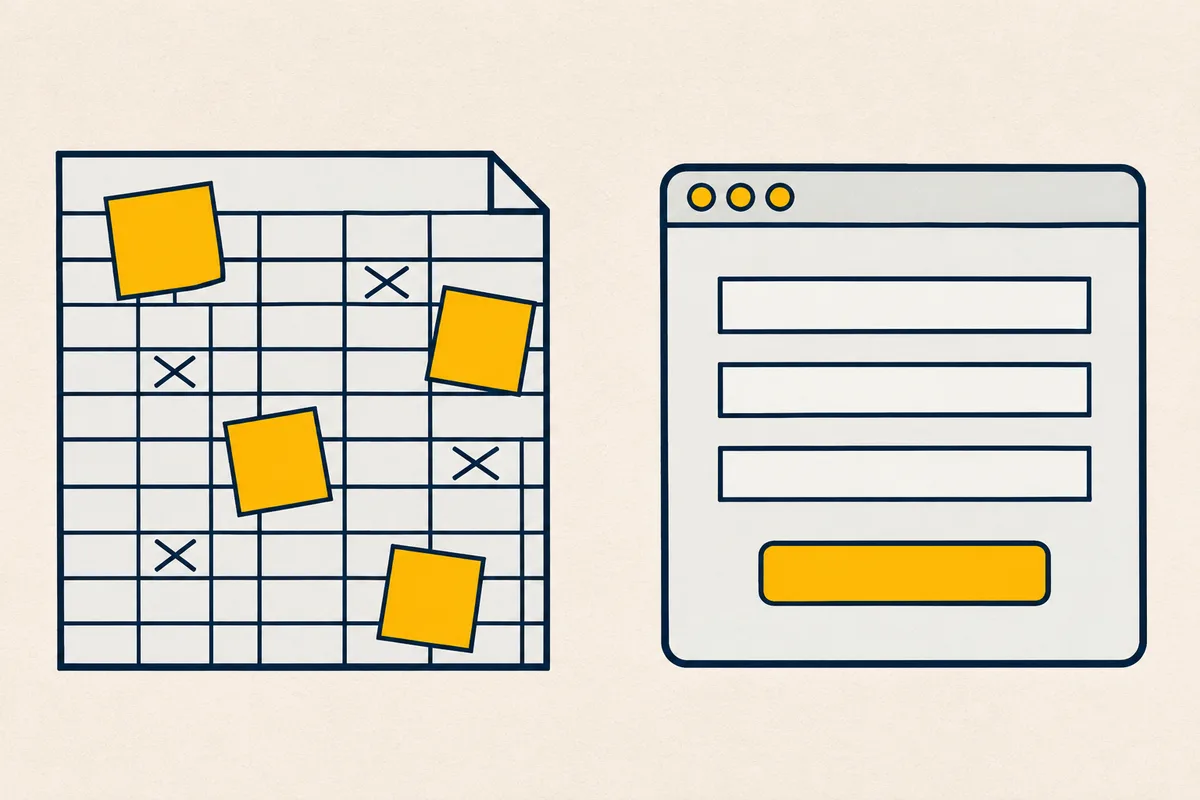
Almost every small business has its shared Excel file. It started as a simple table to track quotes or time off, then it became the tool the whole team depends on, with its tabs, its colors and rules that only its author really knows. The moment to replace it rarely comes all at once. It shows up as an overwritten formula, two people editing the same row, or a client who needs to fill in their part without seeing the rest.
Yet you no longer need a developer to turn it into a real tool. Your AI, Claude or ChatGPT, reads the file, understands what it does, and builds a tool from it with a form, rules and a view for each person. What remains is making it available to the team, and that is what while does.
The short version. If a few people fill in a table without getting in each other’s way, keep Excel and its co-authoring. When the rules matter, when everyone should see their own part, or when a client needs to use it, give the file to your AI and ask it to turn it into a tool on while: your colleagues use it, and the data is backed up every day.
Shared Excel file or tool built with AI, at a glance
| A shared Excel file | A tool built by your AI, on while | |
|---|---|---|
| What your colleagues need | Microsoft 365, to edit together | A browser, and a while account or their email account on the Pro plan |
| Two people on the same row | The last change saved generally wins | Entries go through the tool, which checks what goes in |
| Who sees what | The whole file, and people split the tabs | Each person sees what the tool shows them |
| A client | The whole file, through a sharing link | Their part, with an access link and a password |
| The weekly tasks | By hand | At a set time, by the tool |
When to keep Excel, and when to replace it
Excel is not outdated, and nothing forces you to leave it. With Microsoft 365, several people edit the same workbook at the same time, as long as it is saved on OneDrive or SharePoint and everyone has a recent version of Excel1. For a table that three people fill in without getting in each other’s way, that is plenty.
The limits show up when the file becomes a tool. When two people change the same cell, the last change saved generally wins, and Microsoft even suggests splitting areas or tabs between people to avoid conflicts1. Nothing stops a colleague in a hurry from overwriting a formula, though, and a client cannot fill in their part without seeing the rest. Your file is ready to become a tool when you recognize one of these signs.
- The rules matter. A quote must have a client, a date and a valid amount.
- Everyone should see their own part. A salesperson follows their quotes, a technician their jobs.
- A client or a supplier needs to use it, without seeing the rest of the file.
- The file calls for regular tasks, like chasing pending quotes every Monday morning.
Replace the Excel file with your AI, in four steps
The switch happens in one conversation, and you do not have to write a line of code.
- Give your AI a copy of the file. Claude and ChatGPT read an Excel file you hand them. First remove what the AI does not need, such as bank details.
- Describe what the tool should do. Say who enters what, what must be checked, who sees what, and what should happen each week. The more you describe your habits, the more the tool matches them.
- Ask it to put the tool on while, with your rows. Your AI builds the tool and plans for bringing in the rows of the file, so the team finds its data from day one. Without a while account, it does so as a trial, for free, and gives you a link to keep it.
- Choose who uses it, then put the file away. Keep the tool for your colleagues, share their part with a client, and keep the Excel file read-only while everyone finds their way around.
You, to your AI: Here is our quote tracking file. Turn it into a tool for the sales team, where each person only sees their own quotes, and put it on while with the rows from the file.
If you are still weighing which AI to use, our comparison of the best tools to build an internal tool with AI reviews Claude, ChatGPT, Lovable, Retool and Cursor.
What while brings to your tool
Once on while, the tool has its address, and you choose who uses it, without asking anyone for an AI account.
- Your colleagues sign in with a while account for up to 3 people, or, on the Pro plan, with their email account, Google or Microsoft, whatever their number. See keep a tool for your colleagues.
- A client or a supplier uses the tool with an access link and a password, valid for 1, 7 or 30 days, without creating an account.
- Everyone, once someone on your team has approved opening it to the public.

The tool’s data is backed up every day, and you can go back to any moment in the last 14 days, once someone has approved it. What the file asked you to do by hand, like the Monday reminder, the tool does at a set time. Your data is not locked in either, since your AI exports it as CSV whenever you want a pivot table in Excel.
If the tool needs to read your invoicing software or your calendar, its credentials stay in while, and your AI never sees them. Your tools are hosted in France by Nextmap. For more examples of tools made by teams who do not code, see while without coding.
Try it on your file
To try it, give this message to your AI, then hand it a copy of your file. The trial is free, with no sign-up, and your tool has its address in 3 minutes.
Read while.sh/agents and help me get started with while.Sources
- Microsoft, Collaborate on Excel workbooks at the same time with co-authoring, accessed November 18, 2026